
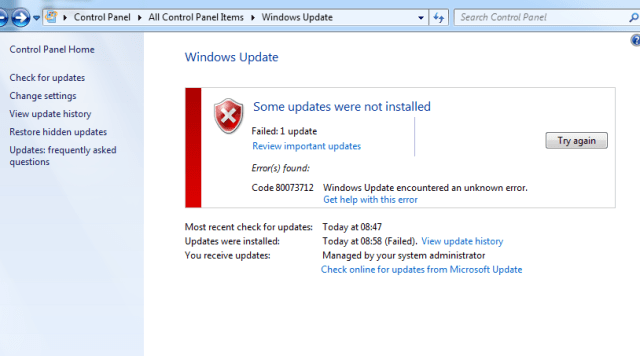
You are catching error code 0x80073712 When trying to install Windows UpdateWindows updates are essential components for the maintenance and security of Microsoft operating systems. Through Windows Update, users receive performance improvements, security patches and new features. It is recommended that users keep this option activated to ensure protection against vulnerabilities and optimize system operation. Updates are downloaded and installed automatically, although it is also possible to configure them manually..? In this post I will tell you all the solutions available about How To Fix Windows Update Error 0x80073712.
You can receive the error code 0x80073712 when trying to install an update from Windows Update or Microsoft Update.
Cause
There are certain reasons behind this update error which are mentioned below:
1. When the component-based service manifest (CBS) gets corrupted or damaged.
2. When Windows Update is corrupted and missing.
3. When Windows files get damaged, get corrupted or replaced by a third-party app.
Solution
Here, I list the most suitable solutions for this error. You can apply them to fix this problem.
Method 1: fix using advanced system repair tool
The most common reason behind Windows Update failed is corrupt or damaged system files like files DLLA Dynamic Link Library (DLL, by its acronym in English) is a file that contains code and data that can be used by multiple programs simultaneously on an operating system. Its main advantage is code reuse, which optimizes the use of resources and reduces the size of applications. DLLs allow different programs to share functionality, as common functions or graphical resources, without the need for.... More, exe files, sys files, etc. There are hundreds of small system files that work for specific tasks. If one of the files is replaced, removes or damages, it is feasible that you get Windows update error 0x80073712.
Download and install the advanced system repair tool and scan your PC. Has the large database with 25 million files. It will find all the corrupted or deleted system files and reinstall them with the new one. Later, optimizing with advanced system repair tool, try installing the windows update again.
Method 2: Use the System File Checker tool to repair corrupted Windows files.
Here are the steps to run the System File Checker tool.
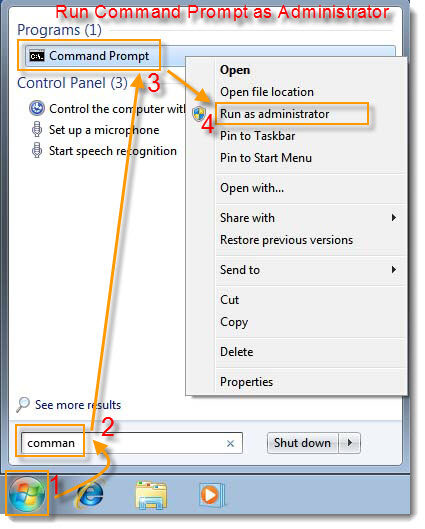
Paso 1: Open command prompt as administrator
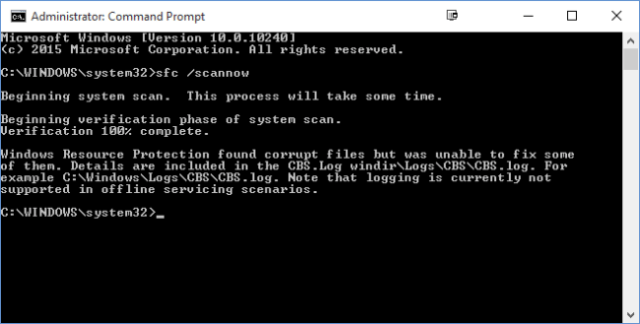
Paso 2: To run sfc /scannow command
Paso 3: Now, try to install the update again.
if you are having difficulty running the System File Checker tool, refer to this Detailed Guide to run sfc / scannow tool.
How to run System File Checker sfc / scannow and fix windows problems
Method 3: Run the DISM.exe tool
DISM.exe The tool comes pre-installed with Windows 8/10 and it is used to repair the Windows update file if the file gets corrupted. This tool repairs corrupted Windows update file and enables you to install it on your PC without any problem..
Paso 1: Open command prompt as administrator
Paso 2: Run the following commands at the command prompt.
DISM.exe /Online /Cleanup-image /Restorehealth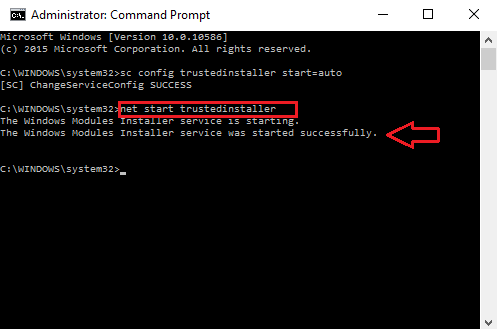
Detailed guide to run the DISM.exe tool: step by step guide with screenshot
Method 4: Run the Windows Update troubleshooter
Windows Update Troubleshooter it's the only feature that works great most of the time. Despite this, the failure rate is also higher, but still, you must try this function once. Who knows you're lucky.
Paso 1: Click the Search button and type Troubleshooting. Click on it to open it.
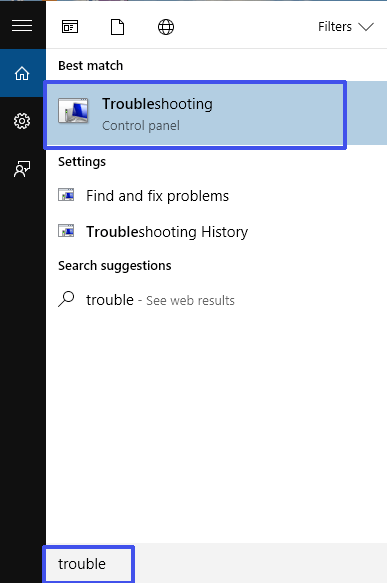
Paso 2: Select Fix problem with Windows Update under System and Security.

Paso 3: Windows Update will open. Click the Next button to start fixing the problem.
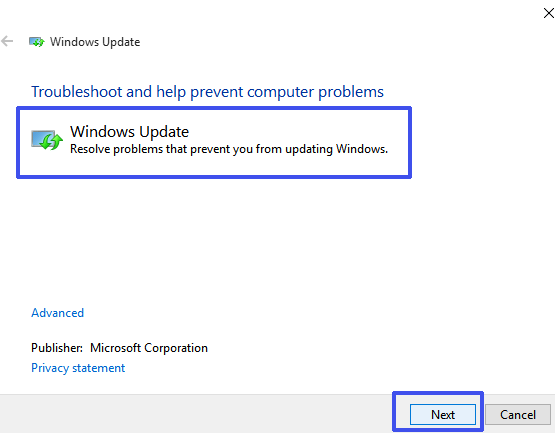
Paso 4: You will see the Windows Update troubleshooter start the procedure to fix the problems.
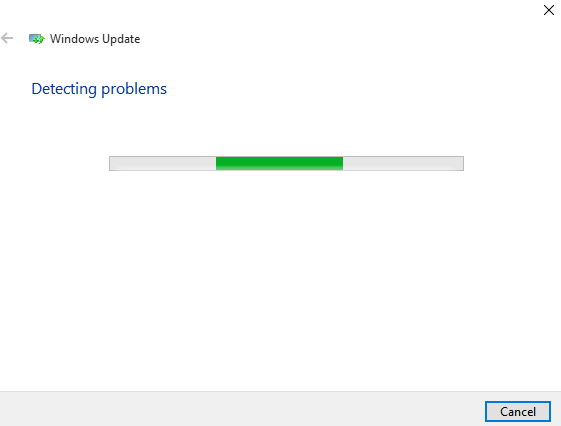
Paso 5: Wait until the procedure is finished. Thereafter, you will see that the problem has been fixed.
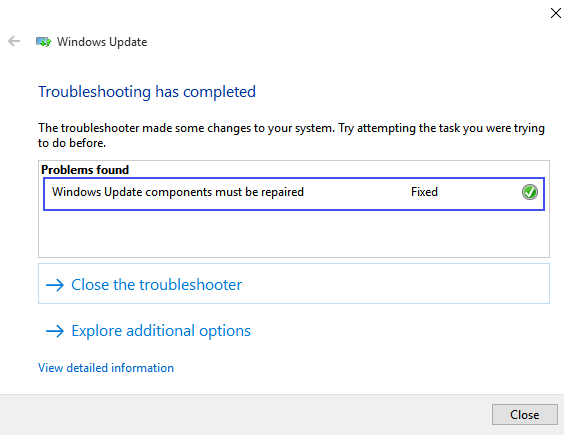
Paso 6: Now, try updating windows again and most likely you will not get the error code like 0x80073712.
And, Unfortunately, neither method works for you, then you should possibly try the Reimage repair tool. This tool is fully designed to fix almost all Windows problems, like windows update problems, Windows Installer problems, Windows runtime problems, Windows application errors, etc.
Resume
This post explains the alternatives to fix Windows update error 0x80073712. if you are having difficulty installing Windows Update due to this error message, this post is written for you. You need to apply the methods to fix the update error.




