One of the great fears of smartphone users is forgetting the password, also known as PIN de Android. If this is your case, do not despair! Here are a number of steps that can help you recover your Android password.
Recover Android password through Gmail
This is one of the best known options. The majority, yes not all, Android phones have the option of use google account to be able to access the mobile again.
If the password is entered incorrectly a certain number of times, the option will appear on your screen; Did you forget your passwordIf you select it, you will be redirected to your Google account.
Advantage
- It is very easy to use.
- Most Android devices offer this option.
Drawbacks
- You need to have Wi-Fi connection or mobile data on your phone.
- If you don't remember your Google password, it can be quite tedious, since you would have to retrieve it through your PC.
SmartLock
It is one of the most useful tools on Android to safeguard and recover passwords. SmartLock will be responsible for saving each open session password on the device to be able to access them through your Google account easily and quickly, with the assurance that all data is safe.
Checking if this option is activated is quite simple, you just have to follow the following steps:
Configuración> cuenta de Google
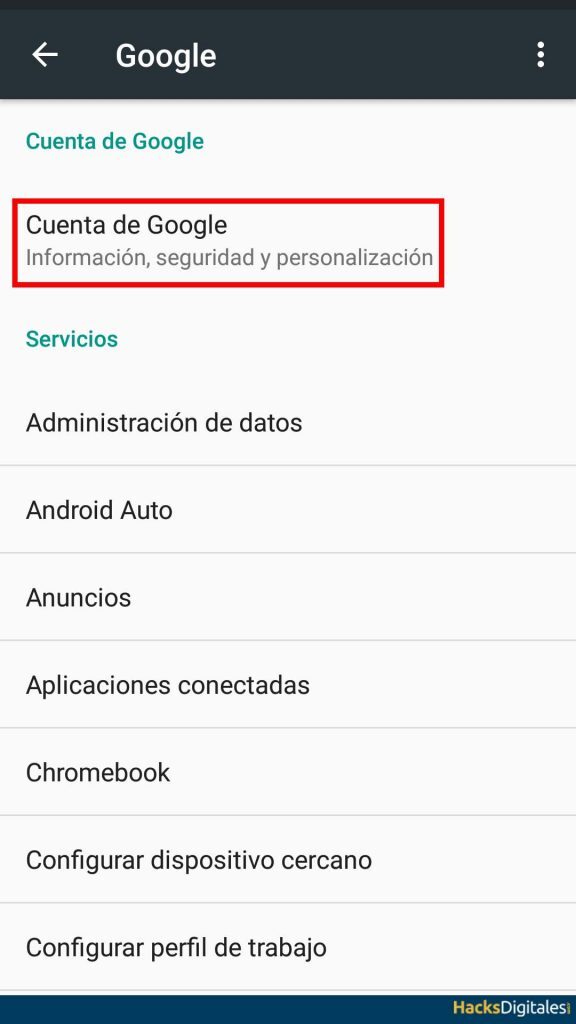
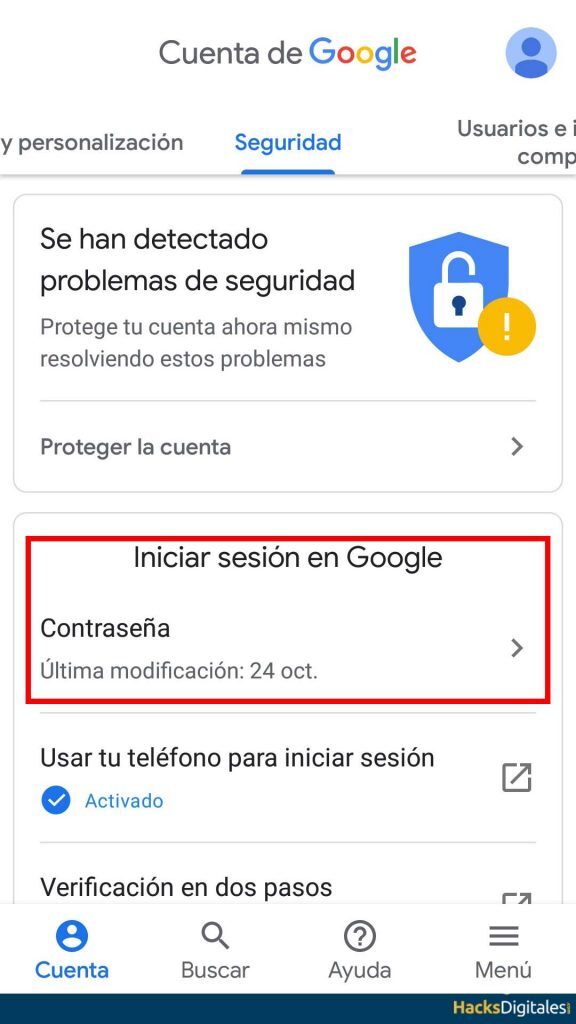
Once inside, we look for the link «Security»:
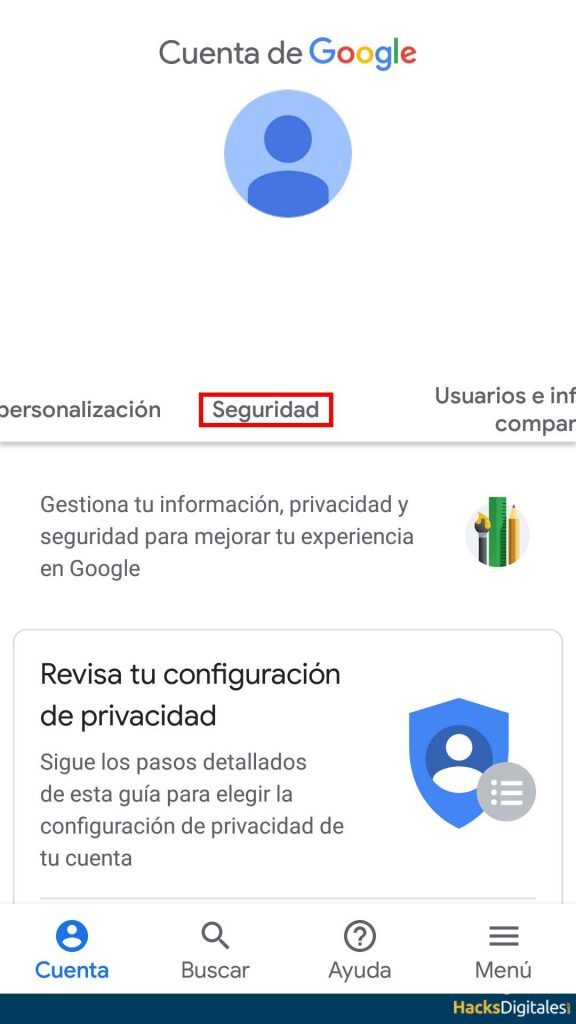
We already have the option of Password in the section Sign in to Google:
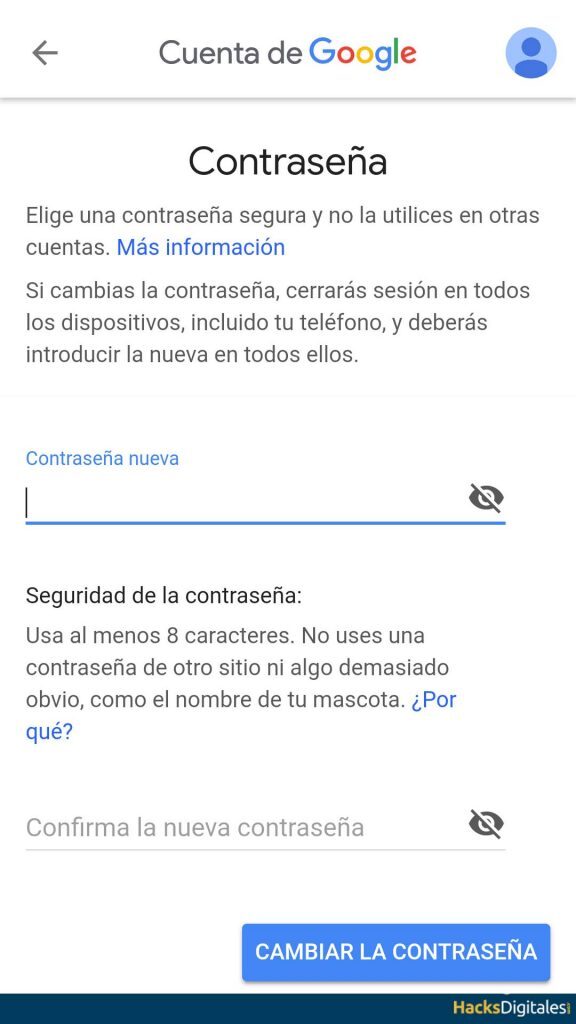
And finally, we present the new google password:
Unlock Android Device Manager
Among the many options that Android offers to its users is this useful service to unlock your phone, which also allows you to track it or erase all the information remotely.
To unlock your phone in case you forget your password, you must create a new one, this can be done as follows:
- Enter google.com/android/devicemanager.
- Enter your Google account details there.
- All the devices associated with your account will appear. Select the one you want to unlock.
- Press option to block.
- Then you must select set a new password. You will need to enter a new password, with which you can unlock your mobile device.
Devices prior to Android 4.4 KitKat

This case is much simpler, since you simply have to mark any password 5 times until the option appears Did you forget your password, on some computers you can say I forgot the PIN or forgot the pattern, depending on the case.
Seleccione esa opción y le pedirá que ingrese su user nameThe "user name" It is a unique identification that people use to access various digital platforms, like social networks, emails and online forums. This identifier can be alphanumeric and often combines letters and numbers., allowing users to protect their privacy and personalize their experience. Choosing a good username is important, since it can influence the perception of other users and.... y contraseña de Google. In doing so, you can immediately enter your device by creating a new password, security pattern or PIN.
Safe Mode
This option is especially useful if you want to remove a blocking application that prevents access to the phone. To do this you must:
- Press the button off and hold it like that for a few seconds.
- A window will appear where you must select reiniciar en safe modeThe "Safe Mode" It is an essential tool in operating systems and electronic devices that allows you to start the system with a minimum set of drivers and services. This mode is useful for troubleshooting., remove viruses or restore settings. When you activate Safe Mode, Users can identify and correct faults that prevent the device from functioning properly. Usually, Safe Mode is accessed by pressing a specific key during boot...
- Restart the mobile / remove the lock app.
Advantage:
- It's very easy to do.
- It doesn't take long.
Disadvantages:
- If it is not a blocking app, you will need to reset the phone.
When resetting is the only option
If you have already exhausted the other resources to recover your password and none of them worked, you have the option of Restart the system. Unfortunately, this will mean loss of saved information and the customization you would have done on your mobile, which will stay with the factory settings, which is the one that comes by default.
The only data that is kept when you make this option is the data that is saved in the micro SD card. This is not a problem for users who back up regularly or have cloud backups.
For it, as in the previous alternative, the off button must be pressed until the display shows the recovery mode, there you must select the format option and wait a moment. This process can take a few minutes.
Once finished, your phone will be as it comes from the factory, no keys or padlocks.
Unlocking the droid
This is a very useful application to recover passwords, by generating a temporary password 6 digits to be sent by text message or email that the user has previously determined. It is convenient that this is one of the first applications to download when you buy your phone.
key gesture
Finally, there is this option, although it is not for everyone, since it implies having some knowledge of the Comandos ADB.
It is an essential requirement that you have activated the USB debugger of the mobile, this will allow you to access it from PC, you must do the following:
- Enter the ADB directory.
- Run the command: adb shell rm /data/system/gesture.key.
- Restart your computer.
If you forgot your password, We hope that some of these options have been useful to you.. It is important that you do not despair if this happens to you, since there are ways to recover your mobile phone, you just have to be careful with the information stored that can affect the loss of the password.
Therefore it is very important to make backups periodically, that way, if you need to format your device, you can do it with total confidence so as not to lose your information.